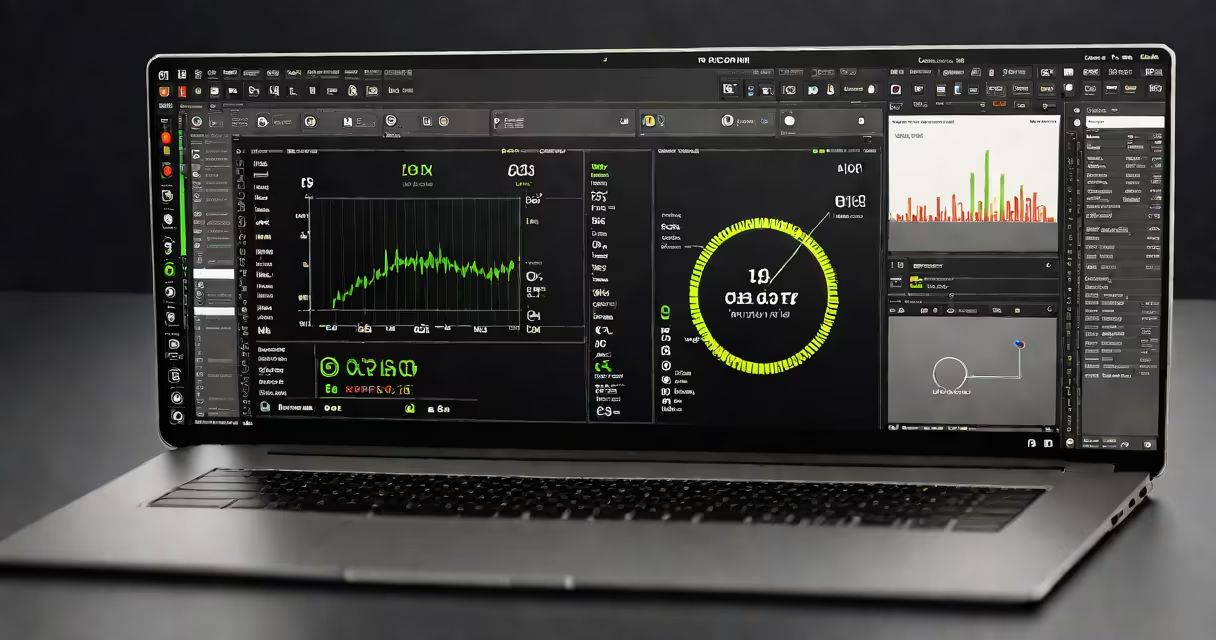
Auto diagnostic software for pc is a program that automatically scans a computer's hardware and software components to detect faults, performance issues, or potential failures. It uses built-in sensors, system logs, and error codes to identify problems such as overheating, failing hard drives, corrupted drivers, or memory errors.
These tools run in the background or on demand, analyzing data from the motherboard, CPU, GPU, storage devices, and operating system. They generate reports that list warnings, errors, or recommendations for fixes. Unlike manual checks, auto diagnostic software processes thousands of data points in seconds and flags anomalies that users might miss.
For example, a tool like HWMonitor detects a CPU temperature spiking above 95°C during gaming. It logs the event, alerts the user, and suggests cleaning the cooling fan or replacing thermal paste. This level of automation reduces guesswork and speeds up repairs.
Auto diagnostic software for pc operates by accessing low-level system interfaces. It queries the S.M.A.R.T. (Self-Monitoring, Analysis, and Reporting Technology) data from hard drives and SSDs, reads temperature sensors via the ACPI (Advanced Configuration and Power Interface), and monitors memory and CPU activity through system APIs.
When a threshold is breached-such as a drive's reallocated sector count rising past 5-it triggers a warning. The software may then display a red flag, log the event, and recommend actions like backing up data or replacing the drive. Some tools integrate with cloud dashboards to track long-term trends across multiple machines.
Modern versions use machine learning to distinguish between normal fluctuations and actual degradation. For instance, if a laptop consistently hits high temperatures under light load, the software learns this pattern and flags it as abnormal, even if no immediate failure occurs.
Diagnostic software varies by function and depth. The most common categories include hardware health monitors, network testers, memory checkers, and full-system analyzers.
| Type | Function | Example Tools | Use Case |
|---|---|---|---|
| Hardware Health Monitors | Track temperature, voltage, fan speed, and drive status | HWMonitor, SpeedFan, CrystalDiskInfo | Preventing overheating or drive failure |
| Memory Diagnostics | Test RAM for bit errors and instability | Windows Memory Diagnostic, MemTest86 | Resolving random crashes or blue screens |
| Network Analyzers | Scan connection stability, packet loss, DNS issues | PingPlotter, Wireshark, NetSpot | Fixing slow internet or dropped connections |
| Full System Scanners | Combine multiple tests into one report | PC-Bench, PassMark PerformanceTest, Belarc Advisor | Pre-purchase checks or performance tuning |
Some tools, like Belarc Advisor, also extract inventory data-listing installed software, hardware specs, and Windows activation keys-making them useful for IT departments managing fleets of PCs.
Auto diagnostic software for pc is standard in enterprise IT environments. A company with 200 workstations uses tools like PC-Bench to test each machine before deployment. If a device fails the memory test, it gets flagged for repair before being issued to employees.
Home users rely on it too. After noticing frequent freezes, a user ran CrystalDiskInfo and discovered their SSD had 12 reallocated sectors. The tool recommended backup and replacement. Without it, the user might have lost critical documents.
Repair shops use diagnostic suites to cut troubleshooting time. A technician diagnosed a laptop's boot failure by running MemTest86, which revealed faulty RAM. Replacing the module took 10 minutes-without the tool, they'd have spent hours testing components manually.
Many users mistake auto diagnostic software for antivirus programs. While both scan systems, antivirus tools look for malware, not hardware flaws. A false positive from an antivirus might flag a legitimate driver update as malicious-but diagnostic software won't misinterpret system files as threats.
Another misconception is that all diagnostic tools require advanced technical skills. In reality, many are designed for beginners. CrystalDiskInfo shows a green icon if the drive is healthy, yellow if warnings exist, and red if failure is imminent-no jargon needed.
A lesser-known fact: some diagnostic tools access firmware-level data not exposed through the OS. For example, Intel's Rapid Storage Technology utility can read drive wear levels directly from the SSD controller, even when the OS reports "healthy." This insight allows early detection of flash memory degradation before data loss occurs.
I once encountered a Dell Latitude 5420 that crashed randomly during video editing. The user reported no error messages. I ran Belarc Advisor first-it listed 16GB of RAM and a quad-core processor, but no obvious hardware issues.
Next, I launched MemTest86. After 15 minutes, it reported 12 memory errors across four channels. The system had passed Windows' built-in memory checker earlier, but that tool only runs one pass and skips deep patterns.
Replacing the RAM stick resolved the crashes. The diagnostic software caught a latent fault that had gone undetected for months. Without it, the user would have assumed the issue was software-related and wasted time reinstalling the OS.
After the fix, I ran HWMonitor to confirm stable temps and voltages. All readings were within normal ranges. The root cause was isolated to faulty RAM-identified solely because the diagnostic software performed deeper analysis than default tools.
Not all auto diagnostic software is trustworthy. Some free tools bundle adware or collect telemetry. Always download from official sites or trusted repositories like SourceForge or GitHub.
Also, avoid tools that claim to "fix" hardware issues. No software can repair a cracked motherboard or replace a dead power supply. These tools diagnose problems-they don't fix them. If a tool promises to "revive" a failing drive, it's likely misleading.
For accurate results, ensure the software supports your specific hardware. Older models may lack sensor support, leading to incomplete data. Check compatibility lists before installation.
Auto diagnostic software for pc is not optional for anyone who depends on system reliability. IT admin, it provides objective evidence of system health. It turns vague symptoms into clear action steps.
Understanding your system's state isn't about tech expertise-it's about control. With the right tool, you stop guessing. You start knowing.