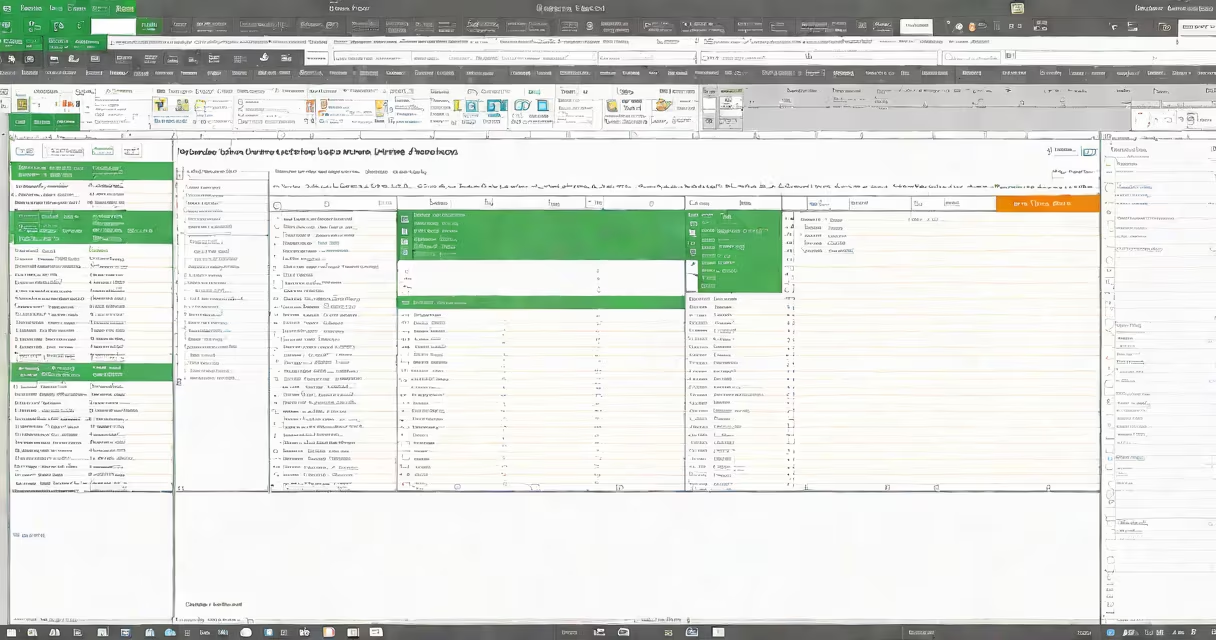
Locking a header in Excel keeps the first row or column visible while scrolling through large datasets, ensuring consistent reference points during data review. This feature uses the Freeze Panes tool, accessible via the View tab.
When working with spreadsheets containing hundreds of rows-such as sales reports, inventory logs, or project timelines-the top row often contains column titles like "Date," "Product," "Quantity," and "Price." Without freezing, these labels disappear off-screen as you scroll down, increasing the risk of misreading data.
Freeze Panes is the standard method to lock headers. It doesn't prevent editing-it only holds the selected rows or columns in view. You can apply it to the top row, leftmost column, or both simultaneously. The action is reversible and applies only to the current worksheet.
Excel divides the worksheet into panes. When you freeze the top row, Excel creates a horizontal split: the top pane remains static, and the lower pane scrolls normally. The same applies to freezing the first column-vertical splitting keeps the leftmost column fixed.
For example, in a 1,200-row employee database, the first row contains headers: "Employee ID," "Name," "Department," "Salary," and "Start Date." After freezing the top row, you can scroll through all 1,200 entries while still seeing the column labels at the top of the screen.
To activate freezing, select the row below the header (e.g., Row 2), then go to View > Freeze Panes > Freeze Top Row. The command appears in the ribbon, not in a dropdown menu. Selecting the correct cell range before applying the command ensures accuracy.
There are three primary freezing options in Excel:
| Option | Applies To | Best For | Example Use Case |
|---|---|---|---|
| Freeze Top Row | First row only | Reports with column headers | Monthly sales data with "Month," "Revenue," "Expenses" headers |
| Freeze First Column | First column only | Lists with unique identifiers | Inventory sheet with "Item Code," "Description," "Stock Level" |
| Freeze Top Row and First Column | Both first row and first column | Large tables with labeled rows and columns | Project timeline with tasks listed vertically and dates horizontally |
Freezing both row and column is useful when going through complex matrices. For instance, in a financial model tracking quarterly revenue across departments, freezing the first row (quarters) and first column (departments) allows users to track performance without losing context.
A common mistake is selecting the wrong cell before freezing. If you click Cell B2 instead of A2, Excel freezes from that point, which may result in unintended behavior. Always verify the active cell is in the row or column just below the header.
Freeze Panes is often mistaken for "locking cells" or "protecting sheets." These are different features. Locking cells prevents edits; protecting a sheet restricts access. Freezing only affects visibility during scrolling.
Another misconception is that freezing requires a password or special permission. It does not. Anyone with edit access can freeze panes unless the file is protected at the workbook level.
If freezing doesn't work, check that the correct row or column is selected. Also, ensure you're not in a filtered view or a pivot table, where freezing may behave unexpectedly. In such cases, use the "Freeze Top Row" option under View, not the right-click menu.
I once worked on a client's budget spreadsheet where the team was repeatedly losing track of categories while reviewing quarterly data. After enabling Freeze Top Row, navigation improved instantly. The change took less than 30 seconds and eliminated confusion during monthly reviews.
To remove the freeze, go to View > Freeze Panes > Unfreeze Panes. This restores normal scrolling behavior. The command is available even if you've scrolled far down the sheet.
Unfreezing doesn't delete any data or formatting. It only removes the visual constraint. You can reapply freezing later without affecting the original structure.
For advanced users, freezing can be combined with print settings. When printing, frozen rows appear on every page, ensuring headers remain visible in hard copies. This is especially useful for auditors or managers reviewing printed reports.
For recurring workflows, you can automate freezing using VBA. Insert the following macro into the Visual Basic Editor:
Sub FreezeHeader()
    ActiveWindow.FreezePanes = True
End Sub
This code freezes the top row when run. Assign it to a button or shortcut for quick access. However, VBA requires enabling macros and is unnecessary for most users.
Microsoft's official documentation confirms that Freeze Panes is supported in Excel 2010 and later versions, including Excel for Mac and Excel Online. The feature is consistent across platforms, though interface layout varies slightly.
According to Microsoft Support, freezing panes does not affect file size or performance. Even with thousands of rows, the process remains responsive.
Final tip: Always test freezing on a copy of your file first. While the action is safe, unexpected results can occur if the worksheet contains merged cells or complex formulas.