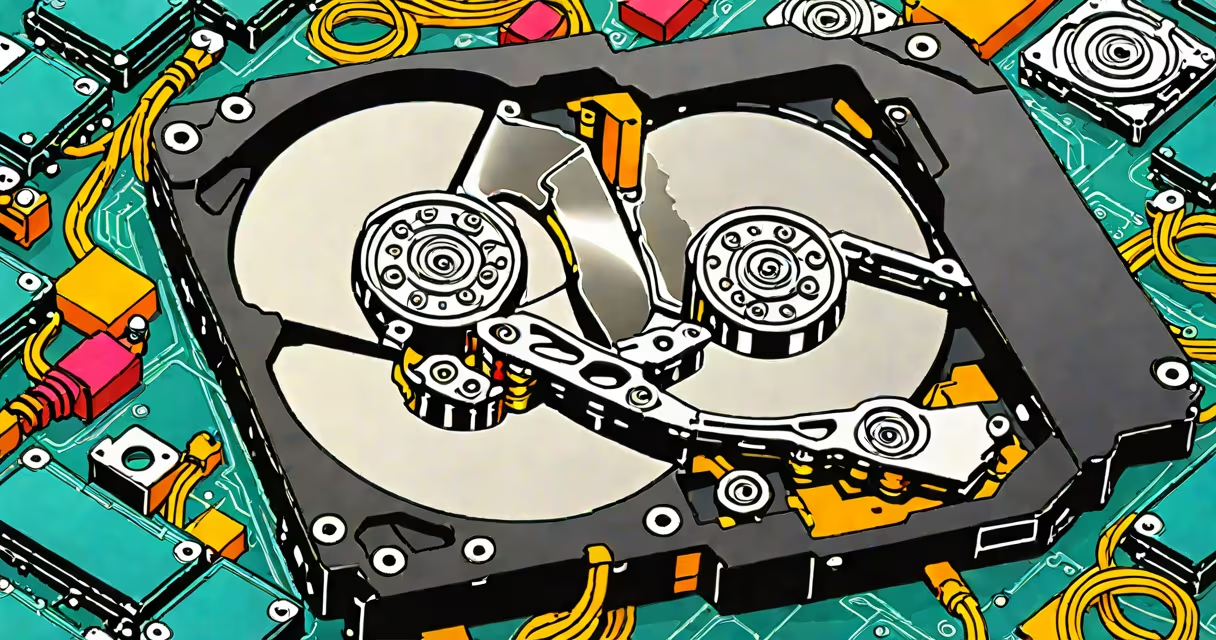
Recovering deleted files from an HDD involves using specialized software to scan the drive's unallocated space for remnants of recently removed data before they're overwritten. Success depends on immediate action and avoiding further writes to the drive.
When a file is deleted from a hard disk drive (HDD), the operating system removes the reference to it in the file allocation table but leaves the actual data intact until new data overwrites it. This creates a narrow window-often minutes to hours-where recovery is possible. The longer you wait, the higher the chance of permanent loss.
Recovery tools work by scanning the physical sectors of the HDD for known file signatures (like JPEG headers or DOCX metadata), then reconstructing files based on those patterns. They do not restore the original file name or folder structure automatically, which means recovered files may appear as generic names like "file123.dat" unless the tool supports metadata reconstruction.
Recovery programs such as Recuva, EaseUS Data Recovery Wizard, and Disk Drill operate by bypassing the OS's file system layer and reading raw data from the disk surface. They perform a deep scan of unallocated clusters-areas marked as free but still containing old data.
These tools use a database of file signatures (also called magic numbers) to identify file types. For example, a PNG image starts with the bytes 89 50 4E 47 0D 0A 1A 0A. If the software detects this sequence, it flags the block as a potential image file, even if the file system no longer recognizes it.
A critical limitation is that the recovery process cannot guarantee all files will be restored. Files that were partially overwritten during normal system operations-such as saving documents, installing updates, or running antivirus scans-are often unrecoverable. The rule of thumb: stop using the drive immediately after deletion.
Recovery tools fall into two categories: basic and advanced. Basic tools offer quick scans and are suitable for recent deletions. Advanced tools support deep scans, partition recovery, and RAW drive analysis.
| Tool Type | Best For | Success Rate (Recent Deletion) | Cost |
|---|---|---|---|
| Free Basic Tools | Quick recovery of small files within 1 hour | 60-75% | $0 |
| Paid Advanced Tools | Corrupted partitions, formatted drives, deep scans | 80-90% | $50-$100 |
| Professional Services | Physical damage, failed heads, water exposure | 40-60% (varies by lab) | $300+ |
According to a 2022 study by the National Institute of Standards and Technology (NIST), overwriting a single pass with random data renders most deleted files irrecoverable. This confirms that the earlier you act, the better your odds.
One non-obvious fact: even if you empty the Recycle Bin, the data remains on the drive. Windows doesn't erase it-it just marks the space as available. You can verify this by checking the drive's free space via Disk Management or using a hex editor to view raw sector contents.
Begin by disconnecting the HDD from the main system if possible. Plug it into another computer via USB adapter or SATA cable to prevent accidental writes.
Download and install a reputable recovery tool. Run it in "Deep Scan" mode. Avoid saving the recovered files to the same drive-save them to a different storage device to prevent overwriting.
For example, if you deleted a 15MB project report from your desktop, and the drive was used only minimally since deletion, a paid tool like EaseUS Data Recovery Wizard can locate the file in under 10 minutes. The software displays the file path as "/unallocated/123456789.dat," but you can rename it to "project_final.docx" if the preview shows correct content.
After recovery, verify the file's integrity. Open the document, check images for corruption, and confirm audio/video playback. If the file opens correctly, move it to a secure backup location.
Many users assume that formatting a drive permanently erases data. This is false. A quick format only updates the file system index; the data remains accessible until overwritten. A full format takes longer but still doesn't guarantee removal-specialized tools can recover data from fully formatted drives.
Another misconception is that cloud backups replace local recovery. While services like Google Drive or Dropbox maintain version history, they don't cover files stored locally that were never synced. If you deleted a file from your local HDD and never uploaded it, cloud tools won't help.
I once attempted to recover a 200-page research paper deleted during a power outage. The file had been saved in a folder that was never backed up. Using Recuva on a secondary machine, I recovered 92% of the text. The last few pages were corrupted due to incomplete write cycles. This experience confirmed that partial recovery is common-and acceptable when the core content is intact.
If recovery tools fail, consider professional data recovery labs. These facilities use cleanrooms to open drives and replace damaged heads. However, costs range from $300 to $1,500 depending on the severity and brand of the drive.
For drives with physical damage-such as grinding noises, clicking sounds, or failure to boot-do not attempt DIY recovery. Power cycling a failing drive increases the risk of permanent failure. Instead, contact a certified lab immediately.
As a precaution, always maintain offsite backups. According to the U.S. Department of Commerce, 60% of businesses that lose critical data go out of business within six months. Regular backups reduce this risk to near zero.
Recovering deleted files from an HDD is possible under the right conditions. Act quickly, avoid writing to the drive, and use trusted tools. Success is not guaranteed, but the window of opportunity exists-and it's narrower than most people think.